
Electrolux Wall Oven Code F14 indicates a display and control error that often stems from a communication issue between the control board and the display panel. Resolving this error typically involves resetting the oven or inspecting the wiring connections for any faults.
Quick-Look Table for Electrolux F14 Error
When encountering the F14 error code on your Electrolux wall oven, it’s essential to understand the specific display and control issues it indicates. The following quick-look table provides a concise overview of the error, helping you diagnose the problem efficiently and take the necessary steps to resolve it.
Understanding the symptoms and potential causes of the F14 error can streamline the troubleshooting process. Below is a quick reference table to help identify the issue.
| Symptom | Primary Suspect | Difficulty (1-5) |
|---|---|---|
| Display not responding | Control board failure | 3 |
| Flickering display | Loose connections | 2 |
| Error persists after reset | Faulty display panel | 4 |
Root Cause of F14 Error
The F14 error code on Electrolux wall ovens often indicates issues with the display or control functions. Understanding the root causes of this error is essential for effective troubleshooting and repair. This section delves into the common factors that lead to the F14 error, helping you pinpoint the problem and restore your oven’s functionality.
The F14 error in Electrolux wall ovens is primarily caused by communication failures between the control board and the display. This can occur due to:
Loose or damaged wiring connecting the control board to the display
Faulty control board that fails to send or receive signals
Defective display panel that does not interpret signals correctly
Identifying the root cause is essential for effective troubleshooting.
Step-by-Step Fix for F14 Code
When your Electrolux wall oven displays the F14 error code, it indicates a problem with the display or control system. This section provides a detailed, step-by-step guide to help you diagnose and resolve the issue effectively, ensuring your oven operates smoothly once again. Follow these instructions carefully to restore functionality and avoid further complications.
Follow these steps to address the F14 error effectively. Ensure the oven is unplugged before proceeding to avoid electrical hazards.
Unplug the oven for at least 10 minutes. This resets the control board.
Inspect the wiring between the control board and display. Look for any visible damage or loose connections.
Reconnect any loose wires securely. Ensure all connectors are tight and free from corrosion.
Test the control board using a multimeter. Check for continuity and proper voltage output.
Replace the control board if it fails the test. Purchase a compatible replacement for your Electrolux model.
Check the display panel for signs of damage. If necessary, replace it to restore functionality.
Electrolux Oven F14 Wiring Problems
Wiring issues can be a common cause of the F14 error code in Electrolux wall ovens, leading to display and control malfunctions. Understanding the wiring connections and potential faults is essential for diagnosing and resolving these problems effectively. This section will explore the specific wiring concerns that may trigger the F14 error and how to address them.
Wiring problems can often lead to the F14 error. Inspecting the wiring harness is crucial. Common issues include:
Frayed wires that may short-circuit
Loose connectors that disrupt communication
Corroded terminals that impede electrical flow
Make sure to address any wiring issues promptly to prevent further complications.
Electrolux Wall Oven F14 Maintenance Tips
Maintaining your Electrolux wall oven is essential for optimal performance and longevity. The F14 error code can disrupt cooking and baking, but with the right maintenance tips, you can prevent display and control errors. This section provides practical advice to keep your oven running smoothly and efficiently.
Regular maintenance can help prevent the F14 error from occurring. Consider these maintenance tips:
Clean the oven regularly to avoid buildup that can affect components.
Check connections periodically to ensure they remain secure.
Inspect for wear and tear on wiring and components.
Implementing these practices can extend the life of your Electrolux oven and reduce the likelihood of errors.
Electrolux F14 Display Error Solutions
Encountering the F14 display error on your Electrolux wall oven can be frustrating, but understanding how to troubleshoot this issue is essential for restoring functionality. This section provides practical solutions to address display and control errors, ensuring your oven operates smoothly once again. Follow these steps to diagnose and resolve the F14 error effectively.
If the display continues to malfunction after following the steps above, consider these additional troubleshooting tips:
Perform a factory reset by following the manufacturer’s instructions.
Update the firmware if applicable. Some models allow for software updates that can resolve bugs.
Consult the user manual for specific troubleshooting steps related to your model.
Regularly reviewing these tips can save time and effort in the event of future errors.
Closing Action for F14 Error Resolution
When dealing with the Electrolux wall oven’s F14 error, it’s crucial to implement the right closing actions to ensure the display and control errors are effectively resolved. This section outlines the necessary steps to finalize the troubleshooting process, helping you restore your oven to optimal functionality. Properly addressing the F14 error will enhance your cooking experience and appliance reliability.
Addressing the Electrolux Wall Oven Code F14 requires careful inspection and systematic troubleshooting. Follow the outlined steps to ensure a thorough resolution. If issues persist, consult a professional technician for further diagnosis.
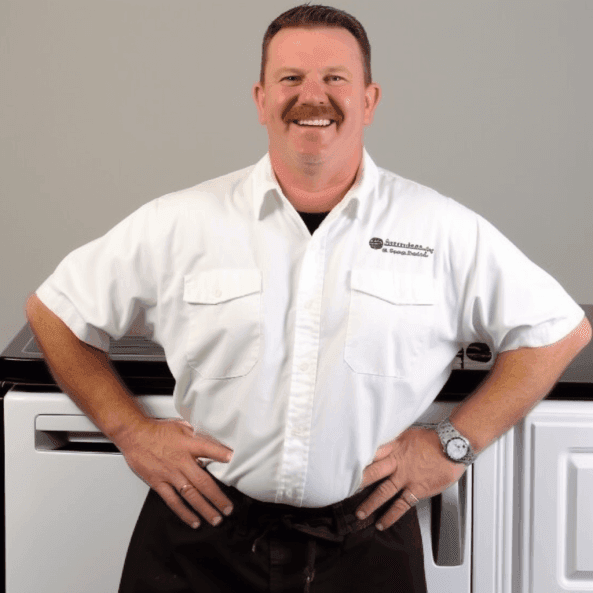
Hey, I’m Jake. I focus on cooling systems at Appliance Mastery, like fridges, freezers, and air conditioners.
I’ve worked in appliance repair for more than ten years and I’m certified through NASTeC. I’ve seen just about every fridge issue you can imagine.
My goal is to help you fix problems without stress. Whether it’s a freezer that won’t cool or an AC that keeps beeping, I’m here to walk you through it.